Search and Filters
Search, filter, sort and page through the cars of the dealership
This guide finds a car in the inventory by search text, stage, filters and sort order.
Requirements: None for the search, the stage and most filters. The asking price filter needs Car Financial Access.
Search
- Open Inventory.
- Enter text in Search inventory. The placeholder reads VIN, plate, make, model, year….
- To clear the search, select Clear search.
The search runs a short moment after typing stops. Each word of the text must match at least one field of the car. The search covers the VIN, plate, brand, model, color, engine, body type, fuel, transmission and year. A part of a word or number also matches. The search ignores the notes of a car.

Filter by stage
The stage chips show All and the seven stages of the lifecycle, each with a count. Select a chip to show the cars of that stage. Select the chip again to return to All.
The counts follow the search and the filters, so a chip shows the number of cars that it will display. On a narrow screen, the chips become one menu with the label Filter by stage.
Filter by details
- Select Filters.
- Set a range for Year, Mileage or Asking price, or tick values under Make, Model, Body type, Fuel, Transmission and Color.
- Close the panel.
The panel applies a range after the field loses focus or after the Enter key. The Mileage range has its own unit selector, km or mi. The dashboard compares cars across both units.
Ticked values within one list match any of them. A car must satisfy every list and range that is set.
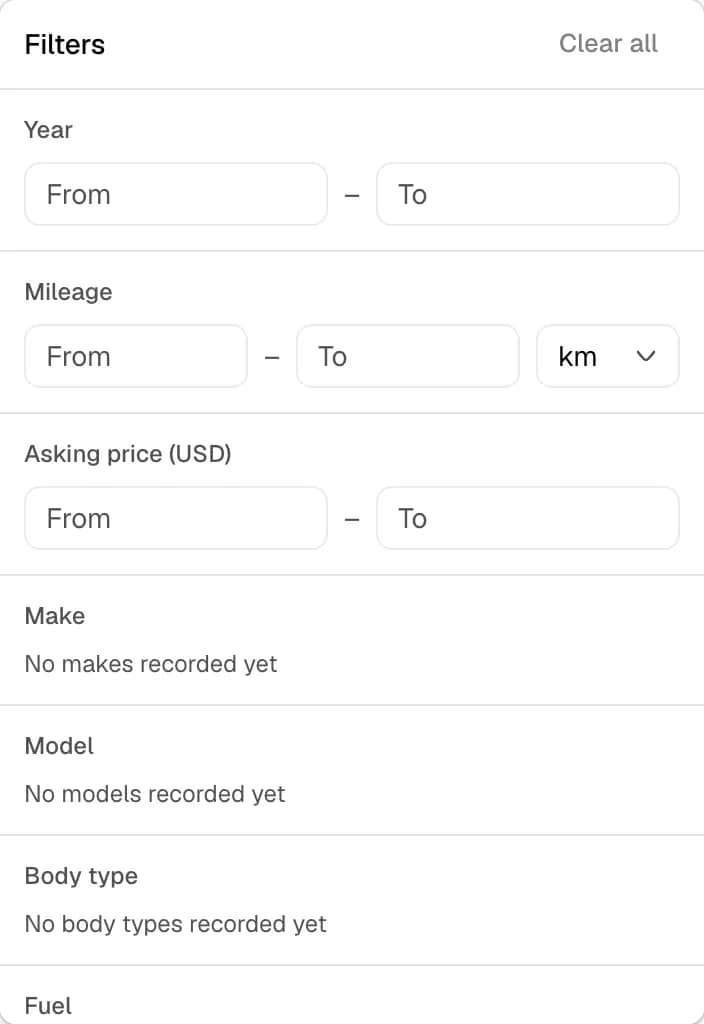
- The number beside a value shows how many cars carry that value.
- After a Make is ticked, the Model list shows only the models of those makes.
- A list with more than eight values gets its own search box.
- The Filters button shows the number of filters that are set.
- Each list has a Clear button. Clear all removes every filter in the panel. The search, the stage, the sort order and the archive view stay unchanged.
Each filter also appears as a chip under the search field. Select the cross on a chip to remove that filter. Clear all beside the chips removes every filter.
Sort and columns
Sorting and the choice of columns are described in Sort the list and choose columns.
Page through the list
The list shows 25 cars per page. The line under the table reads, for example, Showing 1–25 of 60. Select Next and Previous to change the page. Any change to the search, a filter or the sort order returns the list to the first page.
View archived cars
Select the archive button, which has the label Show archived cars. The list then shows only archived cars, and the summary line shows the word archived. Select the same button, now labeled Show the inventory, to return. See Archive or delete a car.
Result
The line under the Inventory heading shows a summary such as 12 cars. The summary reads matching while a filter or a search is set. When a stage is chosen, the summary adds the number of cars in that stage.
The empty list shows No Cars Match when a search or filter is set. Otherwise it shows No Cars in Inventory Yet.
Notes
- Select a row to open the car. A tick box on a row selects the car for bulk changes.
- A pointer over a thumbnail shows a larger photo.
- The address of the page records the search, the filters, the sort order and the page. A copied address opens the same view.
- An address that carries price filters opens without them for a team member without Car Financial Access.