Inventory
VIN Extract
Read the VIN from a photo of a vehicle label and open the form with the car details filled in
This guide reads the VIN from a photo of a vehicle label and prefills the form for a new car.
Requirements: The Owner or Manager role. The monthly car limit of the plan applies when the car is saved. See Add a car to the inventory.
Steps
- Open Inventory.
- Open the menu beside Add Vehicle, which has the label More ways to add a vehicle.
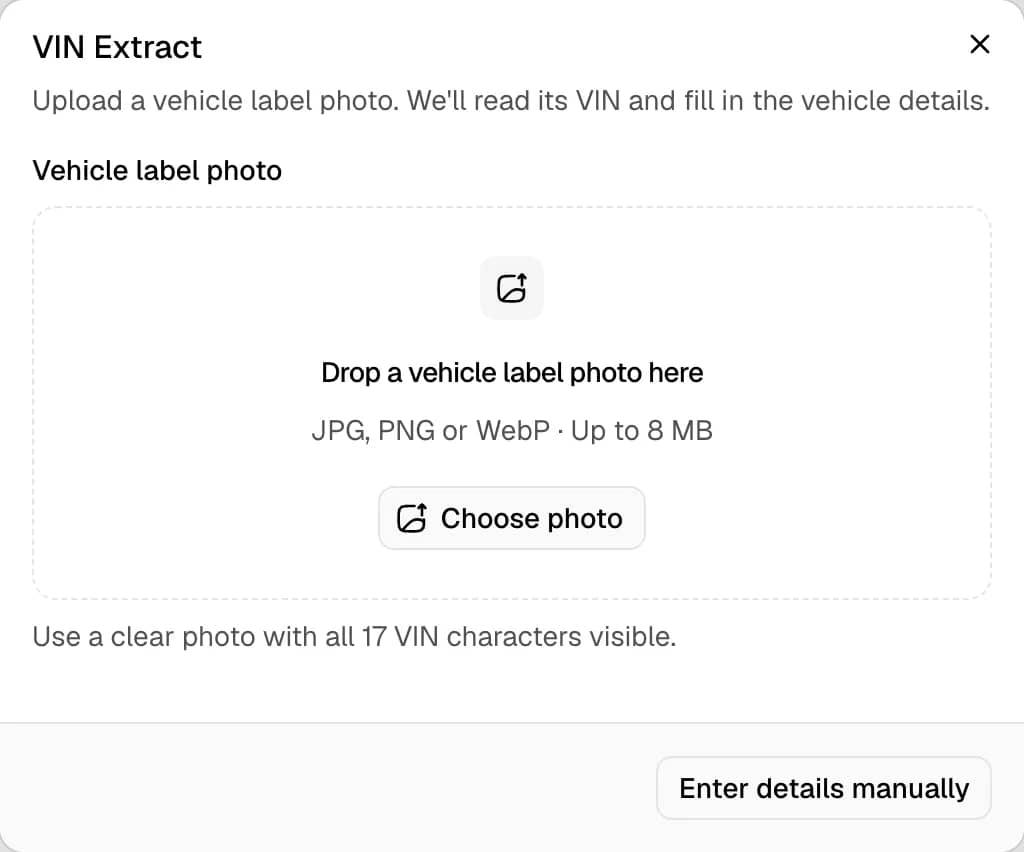
- Select VIN Extract. The VIN Extract dialog opens.
- Select Choose photo, or drop an image on the dialog. The image can be a door sticker, an engine plate or a dashboard plate that shows the VIN.
- Wait while the dialog shows Reading the VIN....
- Follow the case that applies.
- Review the details in the Add a Vehicle dialog and select Add Vehicle.
Cases after the photo is read
| Case | Result |
|---|---|
| The VIN is complete and every character is clear | The dialog decodes the VIN without further input and opens Add a Vehicle with the details filled in |
| Some characters are unclear | The Extracted VIN field appears with the positions to check. Positions start at 1. Correct the VIN against the photo and select Use VIN |
| The label shows a chassis number instead of a VIN | The dialog shows the chassis number and states that a 17-character VIN is required |
| No VIN can be read | The dialog shows the reason. Choose a clearer photo or select Enter details manually |
The Extracted VIN field accepts edits. The Use VIN button stays unavailable until the field holds a valid VIN of 17 characters without the letters I, O and Q.
Select Change photo to read another image. Select Enter details manually at any time to open an empty form. The form keeps the VIN when the VIN is valid.
Limits
- The image must be a JPG, PNG or WebP file of at most 8 MB.
- The dashboard shows a message for any other file type or a larger file.
Notes
- The form opens with the description Review the VIN and vehicle details before adding this vehicle. The car does not exist until Add Vehicle is selected.
- When the VIN decode fails, the dialog shows the message and keeps the photo. Select Enter details manually to continue.
- Check every prefilled field against the car. The label reading and the VIN decode can both be incomplete.