VIN Decoding
Fill the details of a car from its VIN in the car form
This guide fills the make, model and specification of a car from its VIN.
Requirements: The Owner or Manager role, because the decode runs inside the car form.
Steps
- Open Inventory and select Add Vehicle, or open the Edit Vehicle dialog of a car.
- Enter all 17 characters in VIN.
- Select Decode.
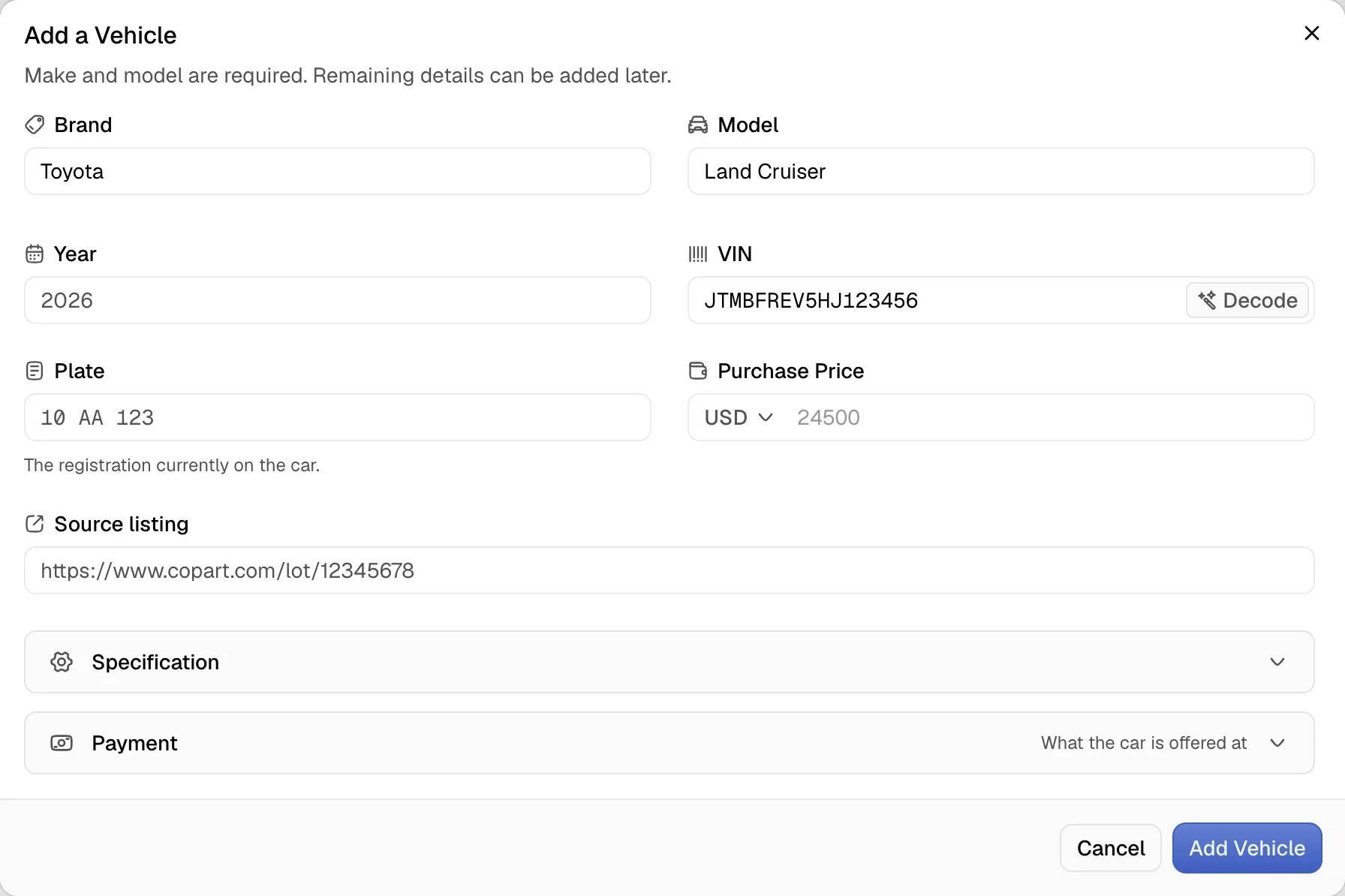
The Decode button stays unavailable until the VIN is valid. A valid VIN has 17 characters and contains none of the letters I, O and Q. The dashboard saves the VIN in capital letters.
What the decode fills
The decode can fill Brand, Model, Year, Body type, Engine, Transmission and Fuel. It fills only the fields that are empty. A field that already holds a value stays unchanged.
A message named VIN Decoded lists the fields that the decode filled. When every described field already held a value, the message says so.
When the VIN leaves the trim open, the Model field offers the possible trims as suggestions.
Failures
| Message | Cause |
|---|---|
| A VIN is 17 characters and cannot contain I, O or Q | The VIN is not valid |
| No vehicle matches that VIN. Enter the details manually. | The number is not issued, or the decode has no record of it |
| The VIN service is not responding. Enter the details manually. | The decode service did not answer in time |
A failure costs nothing. The form stays open and every field can be typed by hand.
Notes
- The decode can depend on an outside service. Check the result against the car.
- To read the VIN from a photo, see Add a car from a label photo.