Notifications
Choose which events reach the account by email, browser or Telegram
The notification settings decide which events reach the signed-in account and through which channel. The preferences belong to each team member and apply to that account only.
Requirements: Every team member of the dealership may open Notifications under Personal. No permission applies.
Choose events and channels
- Open Settings and select Notifications.
- Find the card Notifications. Each row is a group of events with one switch per channel.
- Set the switch of a group under Email, Browser or Telegram.
The page shows the message Preferences updated. after each change. Point to an event icon under a group name to read what triggers it.
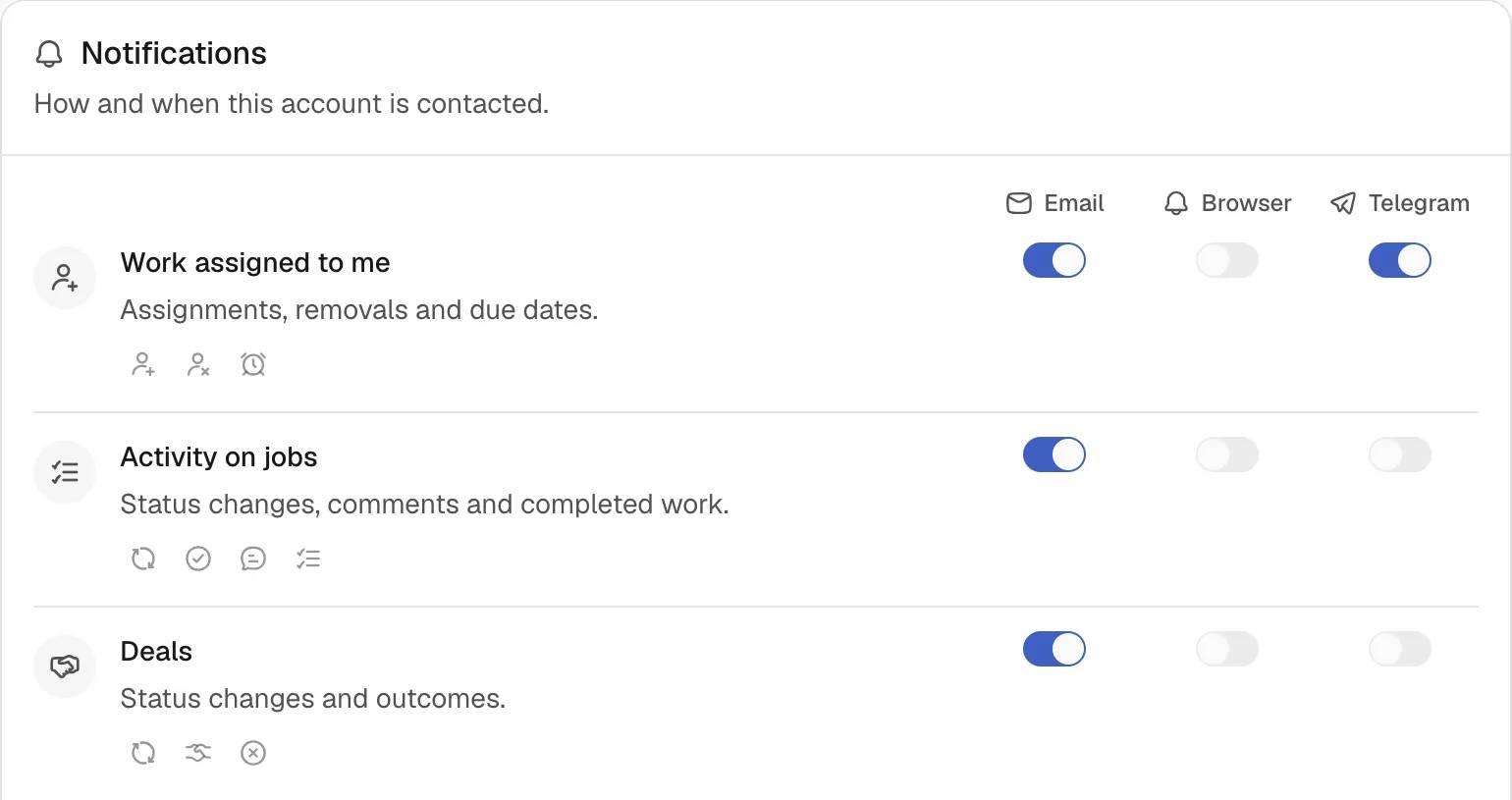
| Group | Events |
|---|---|
| Work assigned to me | Task assigned, task unassigned, task due soon. |
| Activity on jobs | Task status changed, task completed, new comment, checklist updated. |
| Deals | Deal status changed, deal won, deal lost. |
| Vehicles | Vehicle status changed. |
| Messages | New customer message, new customer document, new partner message. |
| Money | Invoice shared, payment settled, payment overdue. |
Enable browser notifications
- In the card Browser notifications, turn on Enabled on this browser.
- Allow notifications when the browser asks for permission.
- Select Send Test to confirm delivery. The button appears once the browser is enabled.
The card shows the number of registered browsers after Registered browsers. The message Test notification sent. confirms a successful test. Browser notifications arrive while the application is closed.
If the browser blocks notifications for the site, the card asks for them to be allowed in the browser settings first. If the browser does not support notifications, the card says so.
Connect Telegram
- In the card Telegram, select Connect Telegram.
- Select Open Telegram. The link opens a chat with the bot.
- Press Start in the chat. If no button appears, send
/start.
The card shows Waiting For Confirmation until the pairing succeeds. The link expires after 10 minutes. After expiry, select Generate a new link. Once linked, the card reads Connected as followed by the Telegram username.
Select Send Test to send a test message. Select Disconnect to unlink the account.
Mute a channel
The card Mute every notification on this channel has one switch for each of Email, Browser and Telegram. Turn a switch on to mute that channel.
A muted channel delivers nothing, whatever the group switches say. While a channel is muted, its switches in the card Notifications show off and cannot be changed. Turning the mute off restores the earlier group switches of that channel.
Notes
- The in-app notification list is always on. It has no switch.
- Invitations of team members and role changes belong to no group. The group switches do not list them.
- Telegram events about a person arrive in the linked personal chat. Events about the whole dealership are posted to a Telegram group of the dealership, which the owner connects under Integrations.
- WhatsApp is not a notification channel.
- The page offers no setting for individual events. Each switch covers a whole group.