Transactions
Foreign Currencies
Enter an amount in another currency and control the exchange rate that converts it
An entry can use any supported currency. The ledger converts each entry into the dealership currency and stores the rate with the entry.
Steps
- Open the Record Transaction dialog. See the guide on recording a transaction.
- Select the currency in the Amount field. The dealership currency is listed first.
- Enter the amount in that currency.
- Set the Date under More. The rate depends on this date.
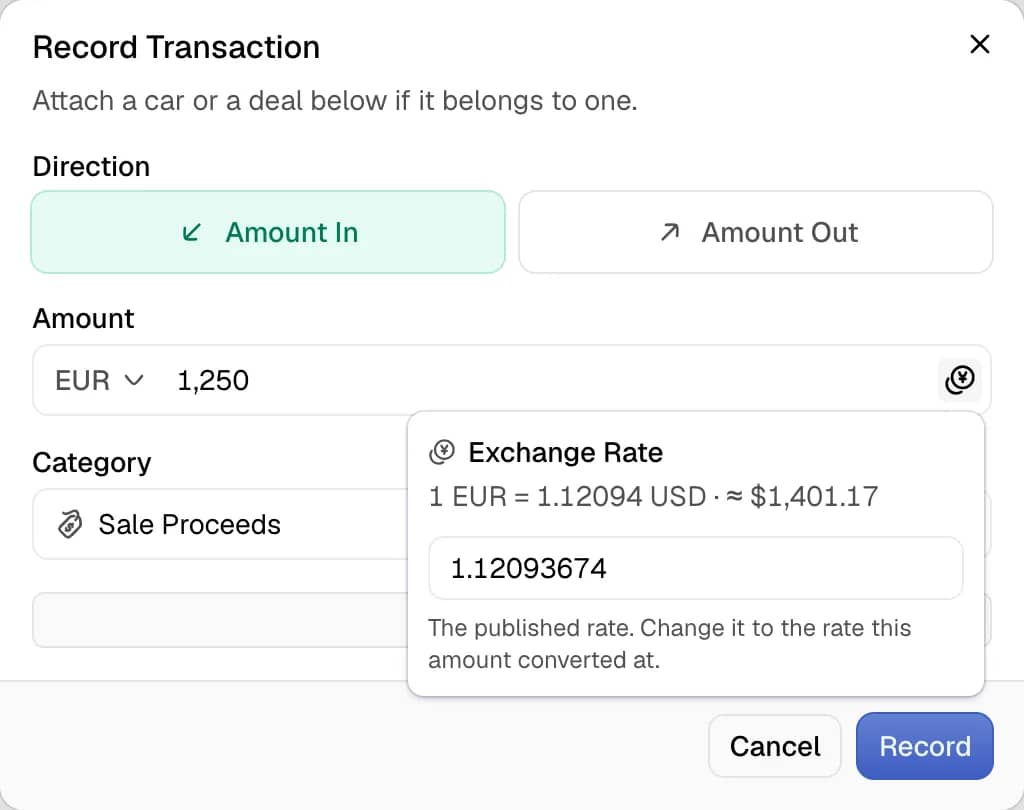
- Hover over or select the Exchange Rate button in the amount field. The button appears only for a foreign currency.
- Read the rate and the converted amount. The converted amount is marked with the symbol for approximately equal.
- Replace the rate with the rate the bank applied, when the two differ.
- Select Record.
How the rate is chosen
The dashboard fills the rate with the published rate for the chosen date. The rate states how many units of the dealership currency equal one unit of the entry currency.
- The rate follows the date until a rate is typed by hand.
- When no rate exists for the date, the dashboard uses the most recent published rate before it. The message names that date.
- The search reaches back at most 10 days. Beyond that, the dialog asks for a rate and the entry cannot be saved without one.
The dealership time zone decides which calendar day an entry belongs to.
The conversion
The amount in the dealership currency equals the amount multiplied by the rate. The result is rounded to the smallest unit of the dealership currency. Halves round up.
The ledger totals, the reports and the sort order of the Amount column all use the converted amount.
What the ledger shows
- The Amount column shows the amount in its own currency. The converted amount appears below it.
- The detail drawer shows the converted amount in a field labeled with the word In and the currency code. The drawer also shows the Exchange Rate.
Notes
- The rate is frozen on the entry. Editing a reference, a note or a category does not change it.
- Changing the currency of an existing entry resolves a new rate. Typing a rate in the dialog replaces the stored rate.
- Completing an awaiting amount uses the rate for the date of completion and not the rate of the awaiting amount.