Manage Containers
Create, edit, archive, restore and delete containers in the yard
The Containers workspace holds the containers of the dealership. The Yard view lists the open containers. The Archived view lists the containers that have shipped.
Requirements: permission to update cars to create and edit containers. Permission to delete cars to archive, restore and delete containers.
Create a container
- Open Exports in the sidebar, then select Containers.
- Select New Container. The button is not available in the Archived view.
- Enter the Container Number.
- Choose the Type: 20 ft Standard, 40 ft Standard or 40 ft High Cube. The default is 40 ft High Cube.
- Choose a Color. The color identifies the container in the exports list and in the workspace.
- Select Create Container.
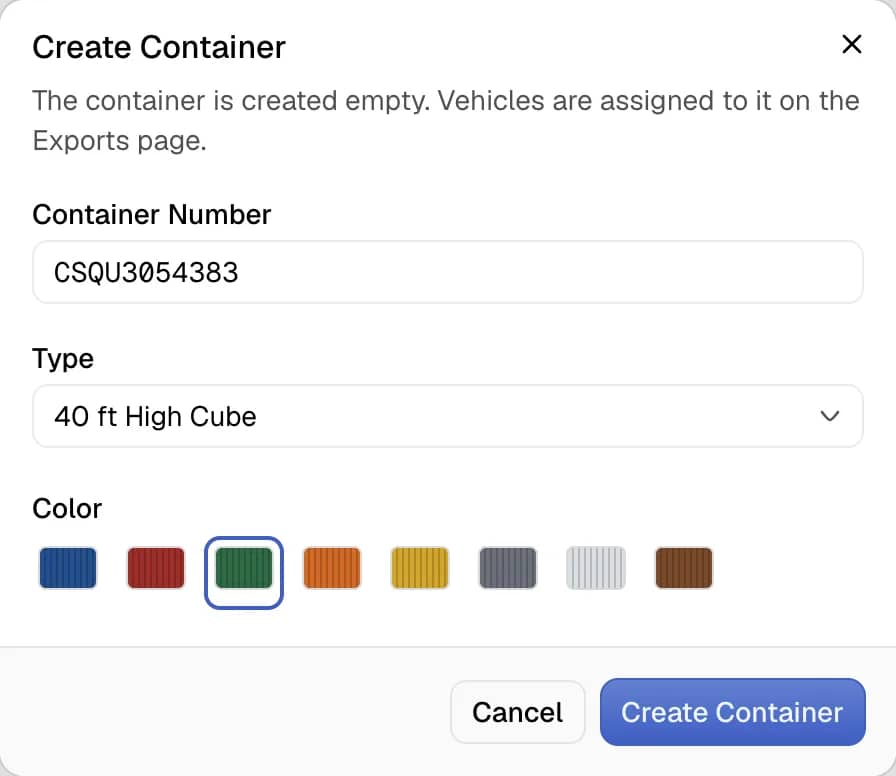
The dashboard shows "Container" with the number and the word "created", and opens the new container. The container is empty. Cars join it as described in Load cars into a container.
Edit a container
- Choose the container in the list.
- Select Edit above the side cutaway.
- Change the Container Number, the Type or the Color.
- Select Save Changes.
The cars loaded in the container are not affected.
Archive and restore a container
- Choose the container in the list.
- Open the menu with the label "More actions for container" followed by the number.
- Select Archive.
The container leaves the Yard view and its manifest stays intact. To bring it back, select Archived in the view switch, choose the container and select Restore to the yard in the same menu.
Delete a container
- Open the same menu and select Delete.
- Select Delete container in the confirmation.
An empty container is deleted at once and the deletion cannot be undone. A container with cars cannot be deleted. The dialog offers Archive container instead. An archived container with cars cannot be deleted at all.
The workspace
| Area | Content |
|---|---|
| List on the left | The view switch Yard and Archived, a search field, the number of containers and cars, and one row for each container with its type and load. |
| Center | The Side Cutaway of the open container. The arrow buttons and the left and right arrow keys step between containers. |
| Right | The Selected Vehicle card, the Live Tracking card, the Load card and the Manifest. |
The Live Tracking card appears for a container that belongs to a tracked shipment. It shows the carrier, the status and the arrival date. Its Map link opens the shipment map.
An amber warning icon in the list marks a container that is over capacity.
The Archived view opens by itself when a link from the exports list points to a container that is archived.