Record Expenses
Add a cost paid by the dealership to the ledger from the Expenses page
Recording an expense adds one ledger entry with the direction money out.
Requirements
The permission Record Payments & Costs is required. The New Expense button does not appear without it.
Steps
- Open Expenses in the Finance group of the sidebar.
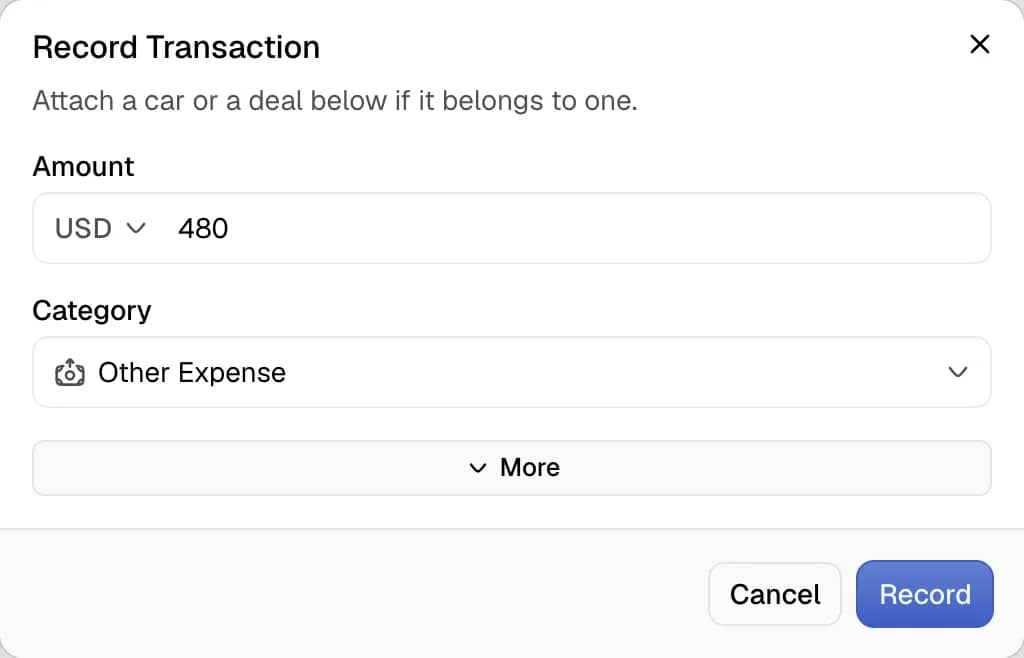
- Select New Expense. The Record Transaction dialog opens. The dialog has no direction switch, because every entry on this page is money out.
- Enter the Amount. Select a currency in the field when the cost was paid in another currency.
- Select the Category. The default is Other Expense.
- Select More to open the optional fields.
- Set the Date. The default is today. A date in the future cannot be selected.
- Select the Method.
- Enter a Reference such as an invoice number, and a Note.
- Select Record.
The dashboard shows the toast Amount out recorded. The entry appears in the table and in the totals when its date falls inside the reporting period.
Category default
When exactly one category is ticked in the category filter, the dialog opens on that category. With none or several ticked, it opens on Other Expense.
Link an expense to a car
Under More, the Vehicle (Optional) field links the cost to a car. The cost then counts toward the profit of that car.
The field appears only for Direct Costs categories. Rent, Salary, Utilities, Marketing, Tax & Licensing, Software & Subscriptions and Other Expense belong to the business and never link to a car.
Notes
- An entry of money in is recorded on the Transactions page.
- Foreign currency amounts follow the rules in the guide on foreign currency transactions.
- Files can be attached under More. The limits are three files, 10 MB each, in JPEG, PNG, WebP or PDF format. A team member without the edit permission for transactions sees a note in place of the attachment area.
- An amount must be greater than zero. Otherwise the dashboard shows Enter An Amount.