Navigation
The sidebar, the header, the breadcrumb and the account menu
Every page of the dashboard has a sidebar on one side and a header above the page content.
The sidebar
The top of the sidebar shows the logo, the name of the dealership and the role of the signed-in team member. Selecting it opens the Company settings.
The menu has three groups. A group or an entry appears only when the team member holds the permission that it needs.
| Group | Entries | Permission |
|---|---|---|
| Dealership | Overview, Inventory, Exports, Tasks | None. Every team member sees these. |
| Sales | Deals, Partners, Customers, Invoices | Read access to deals, partners, customers or invoices, one for each entry. |
| Finance | Transactions, Awaiting, Profit & Loss, Expenses | Read access to transactions. |
The staff role has no access to the Sales and Finance groups by default. The Permissions settings page can change this for a dealership.
The footer of the sidebar holds the Latest Update card, the Settings entry and the account menu. The Settings entry appears when at least one settings section is open to the team member.
Selecting Settings replaces the menu with the settings menu. The top entry of the settings menu, Back to dashboard, returns to the normal menu.
Collapse the sidebar
Select the sidebar button at the start of the header, or press Ctrl+B (Cmd+B on a Mac). The sidebar shrinks to icons. Point at an icon to read its name. The browser remembers the state.
On a narrow screen the sidebar opens as a panel. Selecting an entry closes the panel.
The header
The header stays at the top of the page. It holds three items:
- The sidebar button.
- The breadcrumb.
- The notification bell, at the far end. See Read notifications.
The breadcrumb
The breadcrumb starts with Dashboard and adds one item for each level of the page address. Items of the menu use the menu name. A page of a single record, such as one task, uses the name Details. Selecting an earlier item opens that page. On a narrow screen the breadcrumb shows only the current page.
The account menu
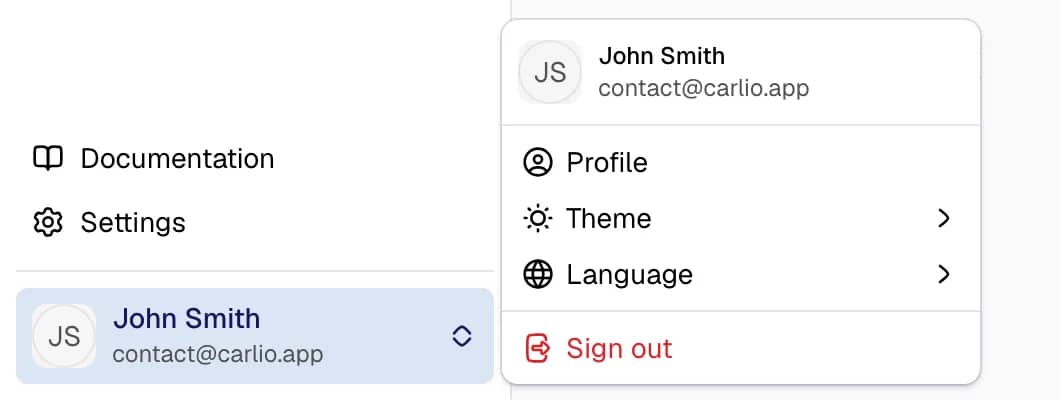
Select the name and email at the bottom of the sidebar.
| Item | Result |
|---|---|
| Profile | Opens the profile settings. |
| Theme | Offers Light, Dark and System. |
| Language | Offers English, Русский, 한국어, العربية and Azərbaycanca. The page refreshes in the chosen language. |
| Sign out | Ends the session and returns to the start page of the website. |
Latest Update
The Latest Update card names the newest entry of the product changelog. It shows the title, a short text and the date. Select Read More to open the entry in a new tab. Select Dismiss Update to hide the card. The card returns when a newer entry is published. The browser remembers the dismissal.
Not available
The dashboard has no global search field. It has no dealership switcher.