Payment Details
Select the saved bank, PayPal, cryptocurrency or other payment details that print on an invoice
Payment details tell the customer how to pay. Each saved set of details is reusable across invoices.
Requirements: permission to create invoices to select details. Adding a new set of details from the form also requires permission to edit invoices (Edit Invoices & Settings). The Add button appears only for team members who hold that permission.
Select saved details
- Open the invoice form and select the Payment tab.
- Tick the saved details to print on this invoice. The tab shows the name and the type of each set.
- Select Create Invoice or Save Changes.
A new invoice starts with the saved details already ticked, up to the limit of four. Clear the boxes that do not apply.
The tab shows the message "No payment details have been saved yet." when the dealership has saved none.
Add new payment details
- In the Payment tab, select Add. The dialog Add Payment Details opens.
- Choose the Type.
- Enter the Payment Name, for example "Business account". The name is required.
- Fill in the fields of the type. The next section lists them.
- Select Save.
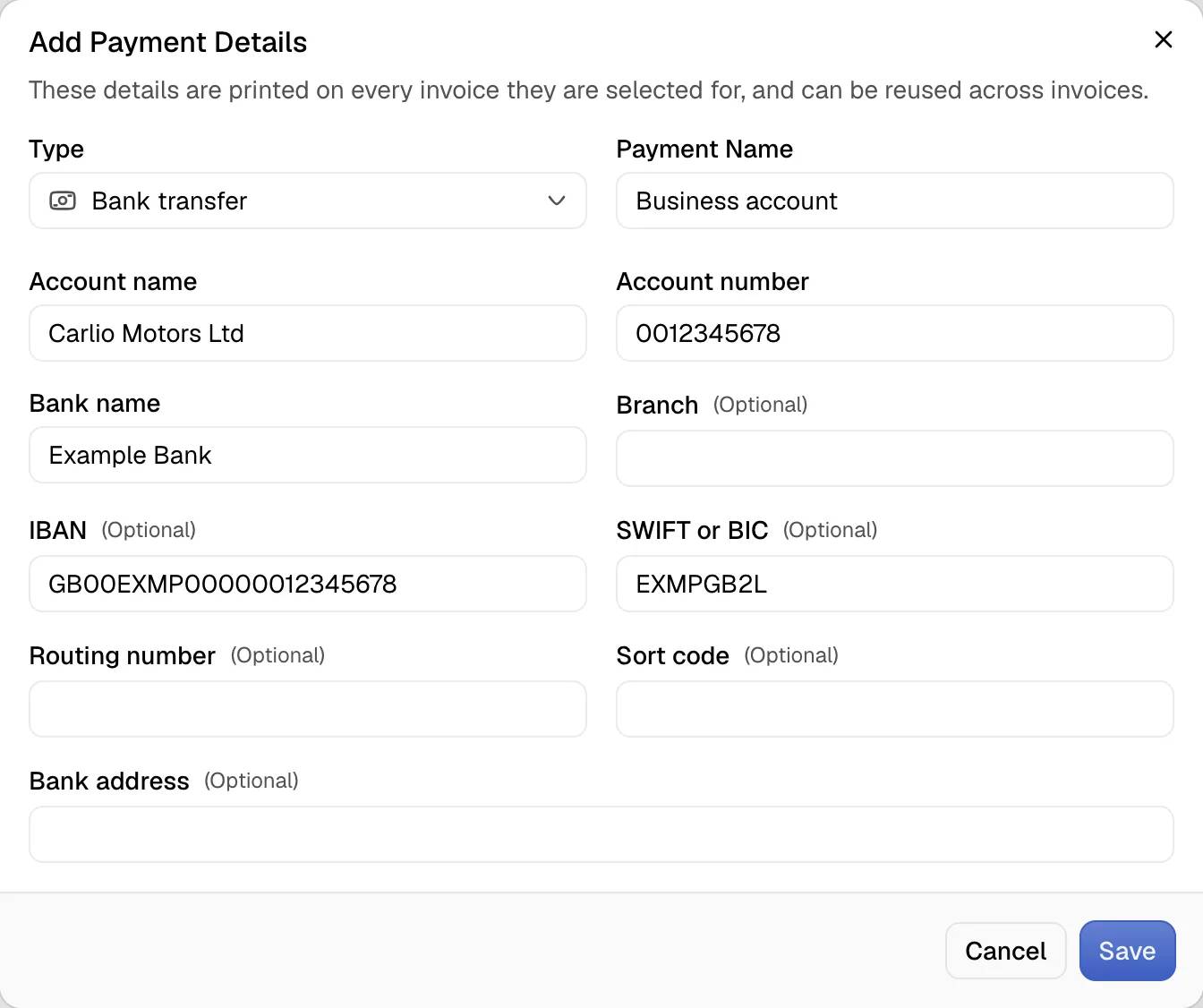
The dashboard saves the details for later invoices and ticks them on the current invoice.
Types and fields
| Type | Fields |
|---|---|
| Bank transfer | Account name, Account number and Bank name are required. Optional fields are Branch, IBAN, SWIFT or BIC, Routing number, Sort code and Bank address. |
| PayPal | PayPal email address is required. |
| Cryptocurrency | Currency and Wallet address are required. |
| Other | Rows of a Label and a Detail. Select Add Row for another row. Each row prints as a labelled line under the payment heading. |
Limits
- An invoice prints at most four sets of payment details. Once four are ticked, the remaining boxes are disabled until one is cleared.
- A payment name holds up to 80 characters.
Notes
- The invoice page lists the details that print on the invoice in the Payment Details panel. The panel reads "No payment details are printed on this invoice." when none are selected.
- Details that an invoice uses cannot be deleted. They can be archived instead. An archived set leaves the picker and stays on the invoices that name it.
- The invoice settings page, under Settings, lists all saved payment details. It offers the actions to change, archive, restore and delete them.